Open the chat widget preview in the Admin Portal while the widget is still off for your site, so your team can try the agent before visitors see it. You can also turn individual quick actions on or off for every domain.
Two changes to the AI Sales Agent chat widget settings let your team get the widget right before a single visitor sees it.
Preview while the widget is off
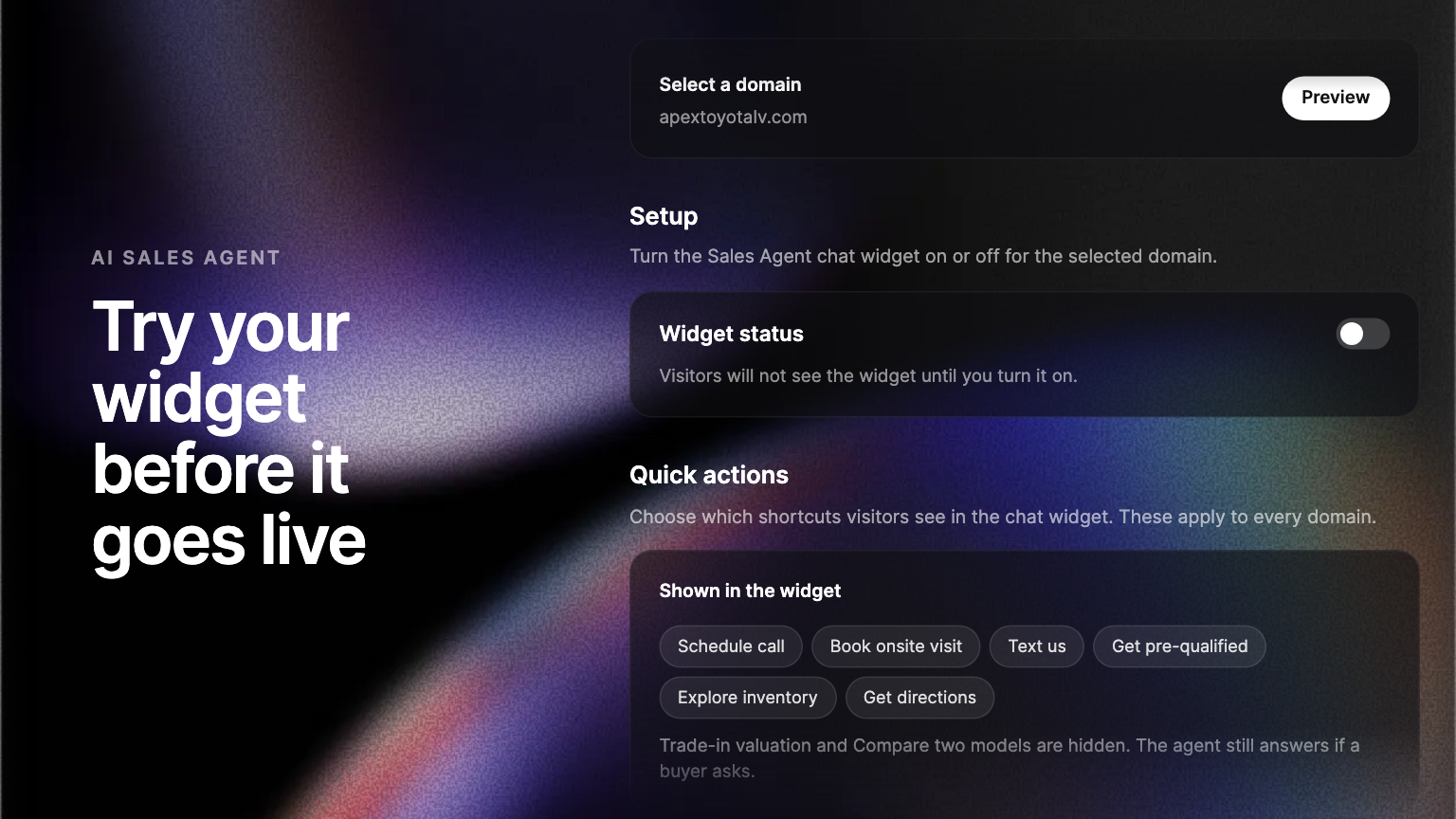
The Preview button works whether the widget is on or off for a domain. Your team can open it, ask the agent the questions your buyers ask, and see the answers, the vehicle cards and the forms exactly as a visitor would. It is the same widget your visitors will get, with your branding, your inventory and what your agent knows about your dealership. While the widget is off, the settings page reminds you that visitors will not see it until you turn it on.
Choose the quick actions
Quick actions are the shortcuts in the widget's menu and suggestions: Schedule call, Book onsite visit, Text us, Get pre-qualified, Trade-in valuation, Explore inventory, Get directions and Compare two models. Turn off any your dealership does not offer, and it leaves the menu and the suggestions. A dealership that does not take trade-ins, for example, can turn off Trade-in valuation so no buyer is offered one. If a buyer asks about it anyway, the agent still answers.
Go live when it is ready
Set the widget up, try it in the preview, adjust the quick actions and the look, then switch Widget status on for the domain. Visitors meet the version your team already tested.
Where to find it
In the Admin Portal, open Settings, then Products, then Chat widget under Sales Agent. Widget status and Preview are in Setup. The Quick actions section lists every action, and your choice applies to every domain.
Frequently asked questions
No. The preview opens only from the Admin Portal. Your site keeps the widget hidden until you turn Widget status on.
No. It removes the shortcut. A buyer who asks for that help in their own words still gets an answer.