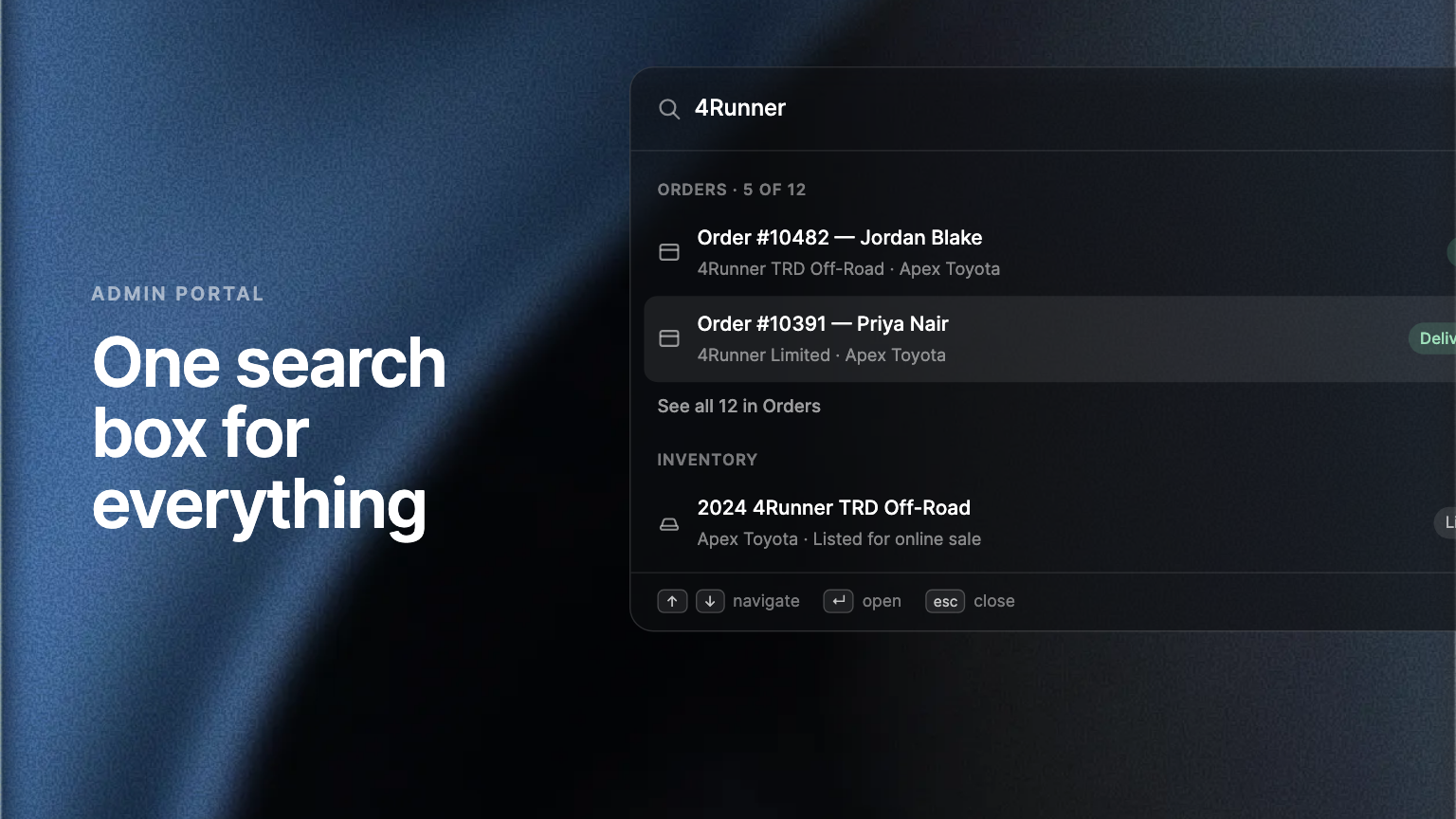
Press Cmd+K (Ctrl+K on Windows) from any page in the Admin Portal to search orders, leads, conversations, inventory and preorders at once, plus every page and settings section. Results are ranked by relevance, and the records you opened last are one keystroke away.
Finding one order, lead or conversation in the Admin Portal used to mean knowing which page it lived on and using that page's own search box. Now you can search the whole portal from anywhere, and jump straight to what you find.
Every record, in one search
Press Cmd+K (Ctrl+K on Windows) from any screen and start typing. Orders, leads, conversations, inventory units and preorders in your account come back at once, ranked by how well they match and then by newest first. Search a buyer's name, an order number or a VIN, and the record you want is usually the first result.
See everything that matches, not just the first few
When a search turns up more than it shows, the group reads something like "Orders · 5 of 37" with a "See all 37 in Orders" row underneath. Open it and you land on that list page with your search already applied.
Every page and setting, too
The same box reaches every page you can open and every settings section, so typing "team" opens Team settings and "hours" opens the Hours section of Business details directly.
Where to find it
Press Cmd+K (Ctrl+K on Windows) from anywhere in the Admin Portal, or click the search field at the center of the top bar. Before you type anything, it shows the records you opened most recently and every page you can jump to.
Frequently asked questions
No. It's available from every screen in the Admin Portal.
No. It searches your Admin Portal only: orders, leads, conversations, inventory, preorders, pages and settings.