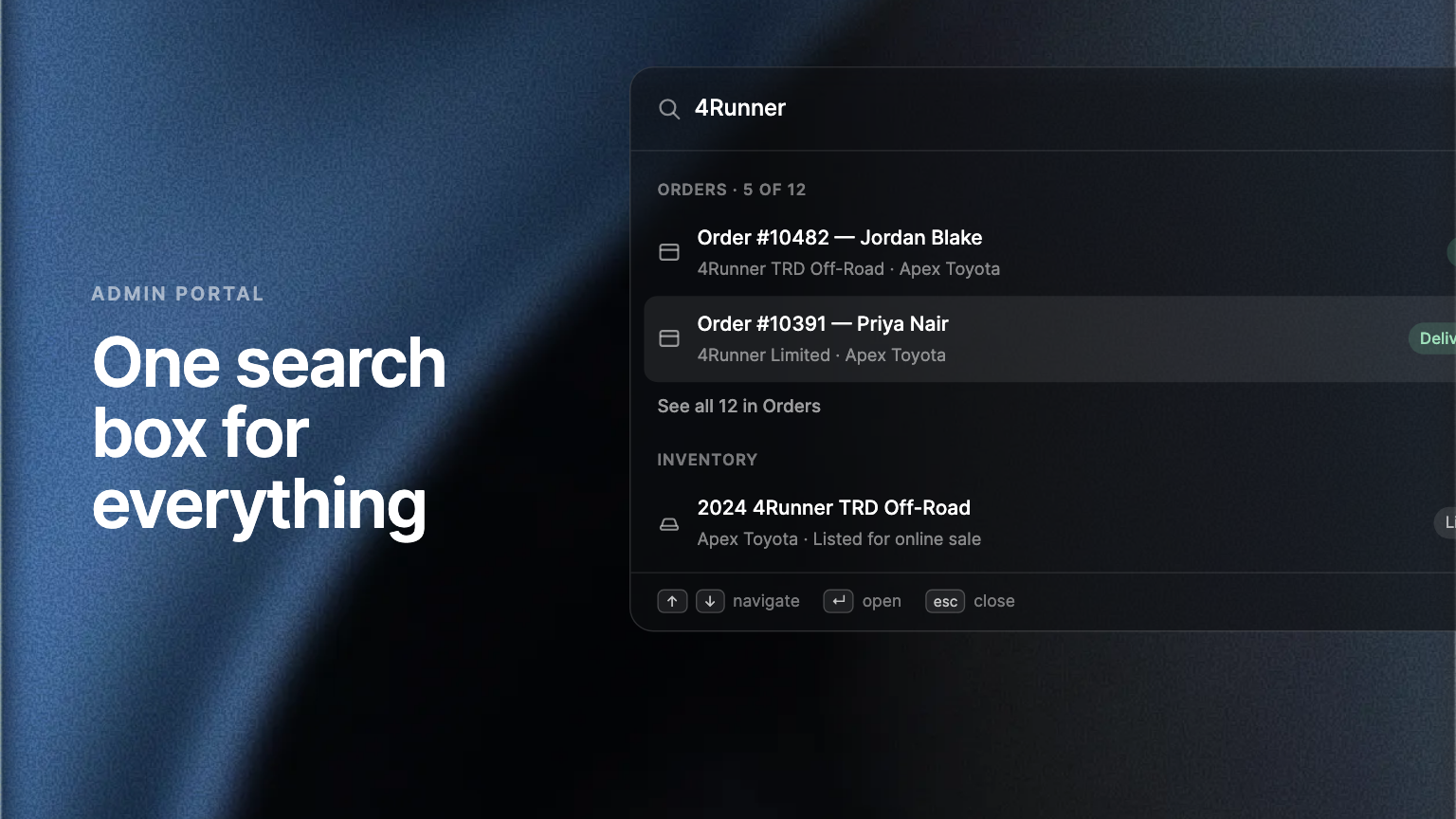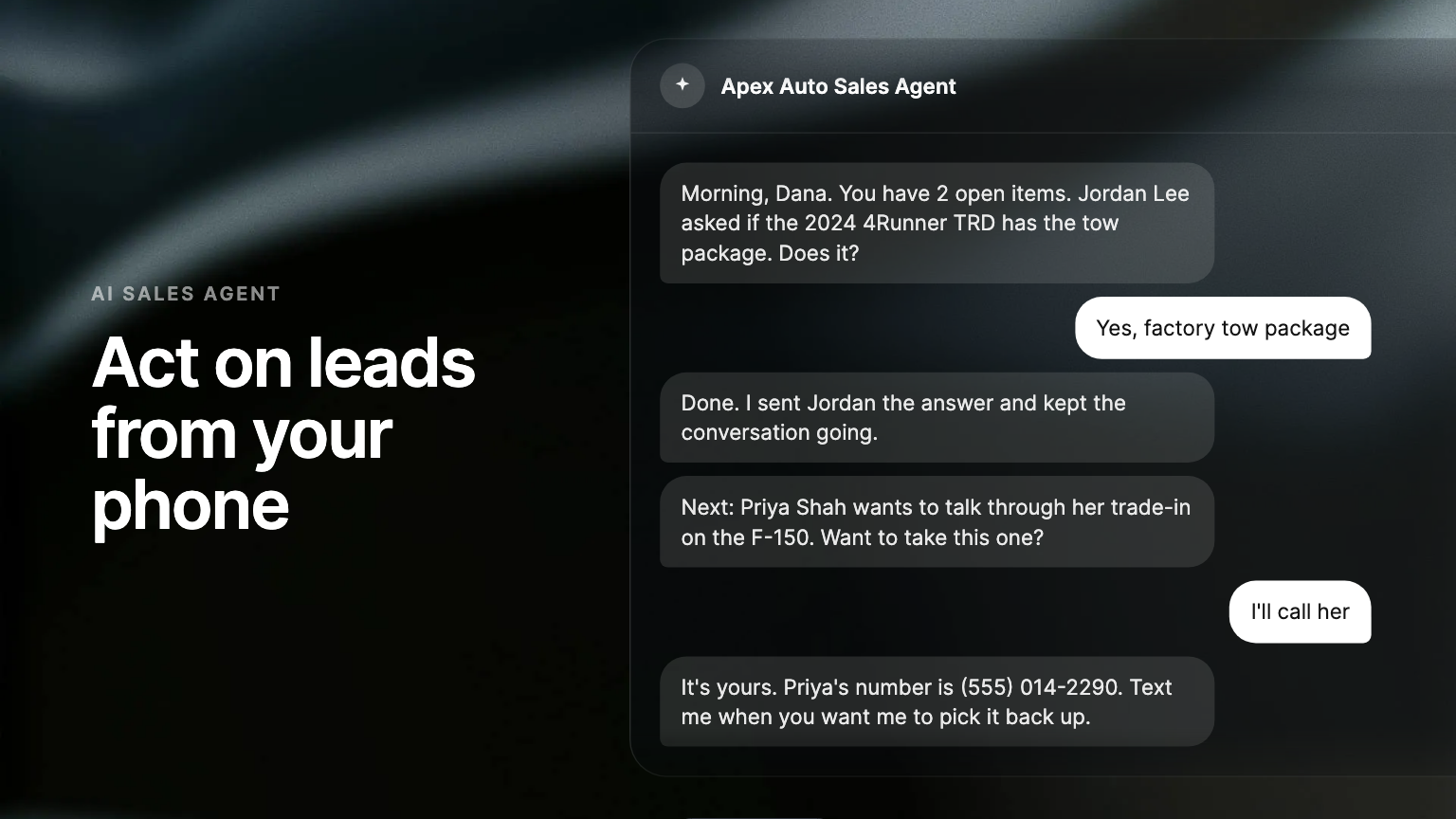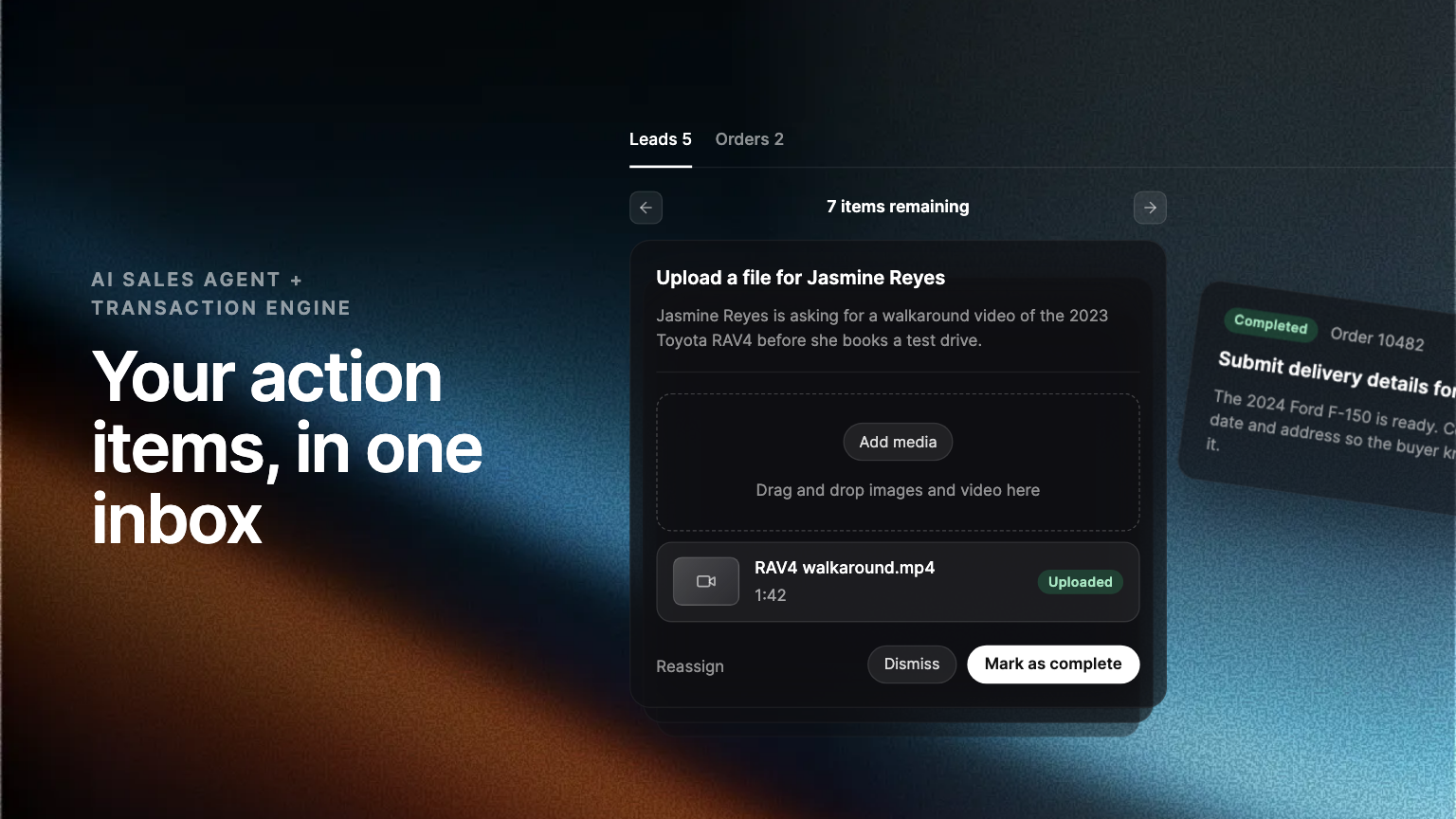
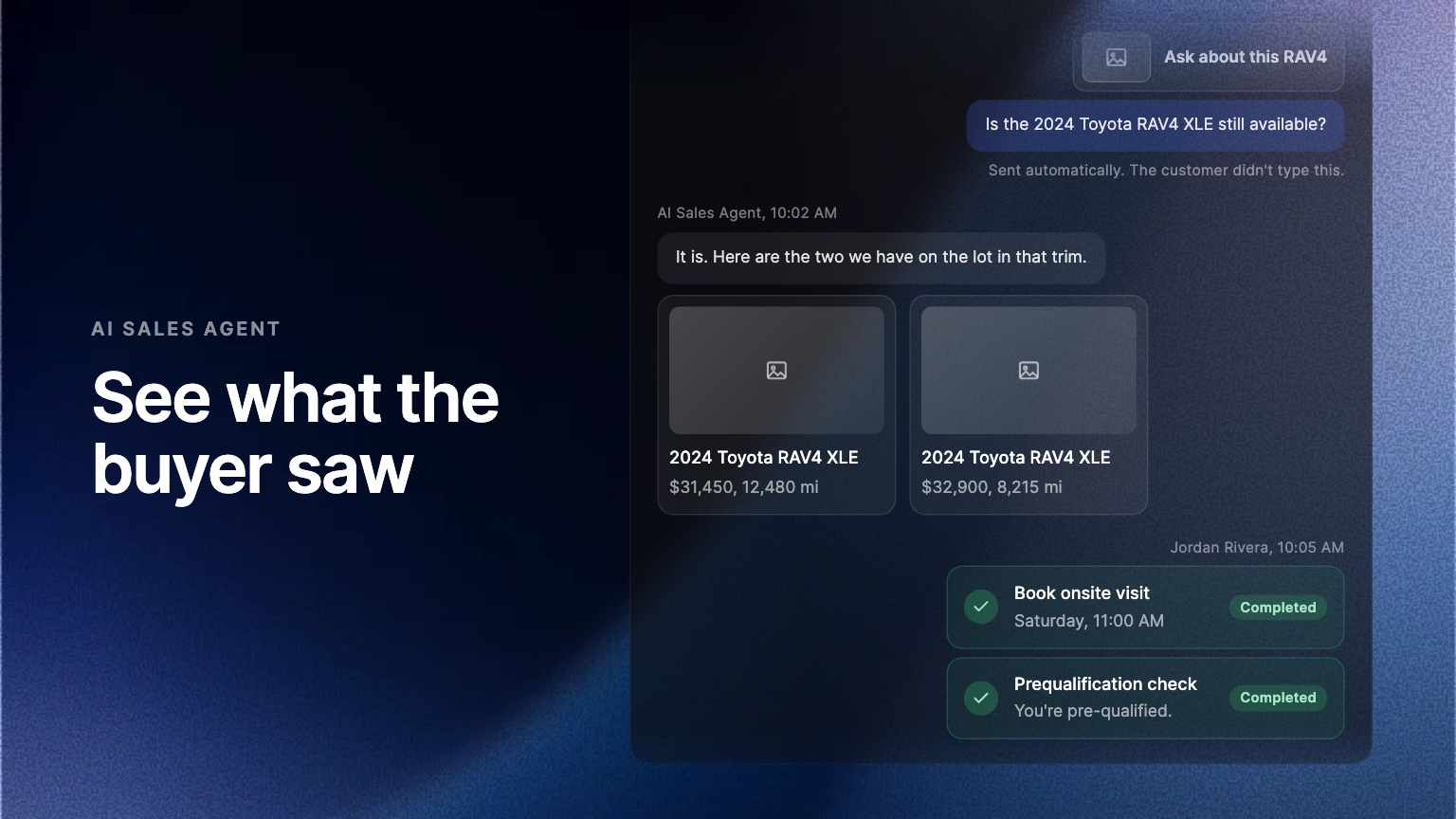
Open a conversation in the Admin Portal and the vehicle cards, bookings, pre-qualification results and contact forms the buyer saw in web chat sit in the transcript. A message sent from a nudge is marked as sent automatically.
When the AI Sales Agent shows a buyer something in web chat, your team now sees it too. Open a conversation in the Admin Portal and every card the buyer saw sits in the transcript, in the place it appeared.
The vehicles the agent showed
When the agent answers with vehicles, the same vehicle cards appear under its reply. Click one to open the listing in a new tab without leaving the conversation.
What the buyer did
A booked call or onsite visit, a pre-qualification result, the contact form and a request to text all appear as the card the buyer completed, under their name. A form the buyer has not filled in yet shows as pending, so you know it is in front of them.
Messages a nudge sent
When a buyer taps a nudge, the message it sends is marked as sent automatically, with the card they tapped above it. You know which vehicle caught their eye, and that they did not type the words themselves.
Pick up where the agent left off
These moments used to show as a one-line system note, or as text that looked typed. A rep who takes over a conversation now starts from what the buyer actually saw, so the first message from a person fits the conversation instead of repeating it.
Where to find it
In the Admin Portal, open Conversations and select any web chat conversation. The cards sit in the transcript as you scroll, alongside the agent's replies and your team's messages.
Frequently asked questions
No. It is part of the Conversations page for every dealership using the AI Sales Agent on web chat.
Cards appear in web chat, so that is where you see them. Text conversations read as they always have.